
Photo to Pixel Art Converter
Convert a photo to pixel art in your browser: choose a block size, add a retro palette if you like, and compare the result with the original. The PNG you download is yours, and nothing is uploaded.
Upload an image
Click to browse or drag and drop
Supports JPG, PNG, WebP (Max 10MB)
Or try an example image:
Portrait, landscape and city examples
One tool, three photos, three different looks. The settings are listed under each result so you can repeat them.

 Original
Portrait, SNES preset
SNES preset, square pixels, 8 px blocks (150 cells along the long side). Keeps full colour.
 Original
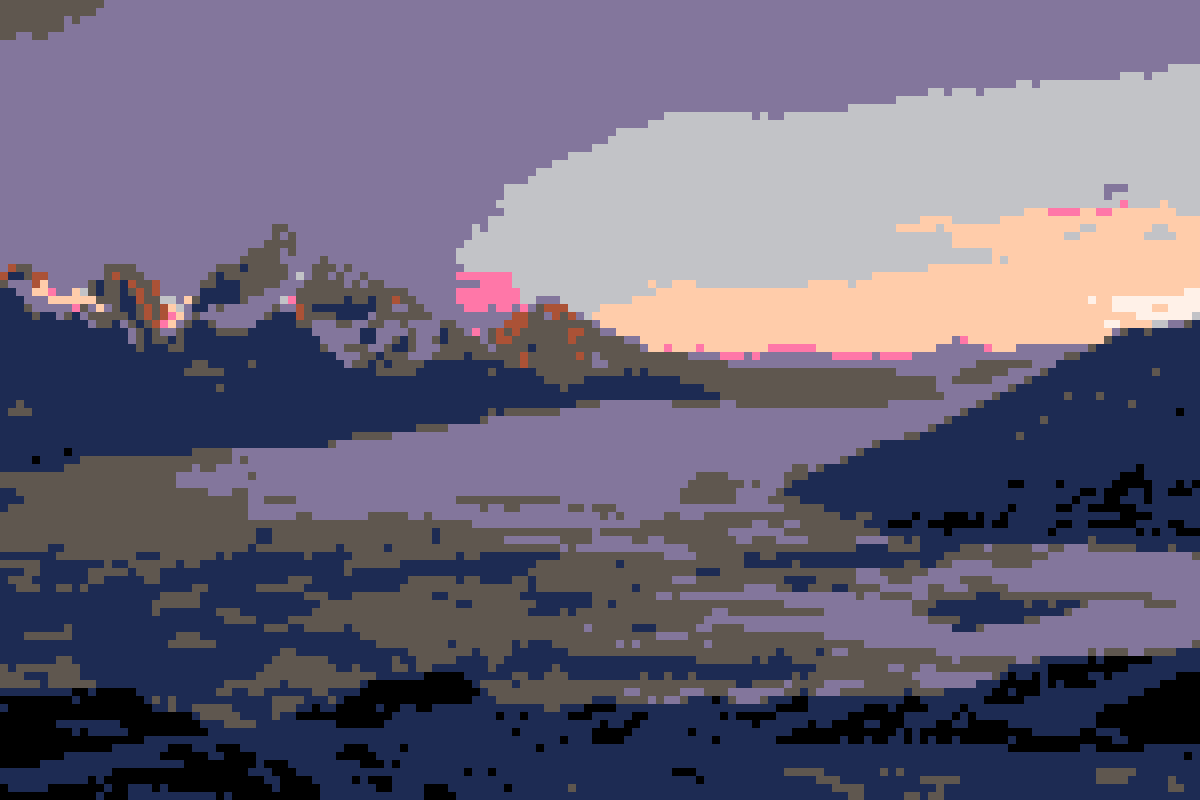
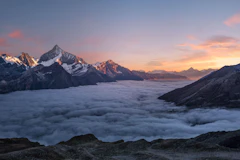
Mountains, Pico-8 preset
Pico-8 preset, square pixels, 8 px blocks (150 cells wide). Uses 9 of the 16 palette colours.
 Original
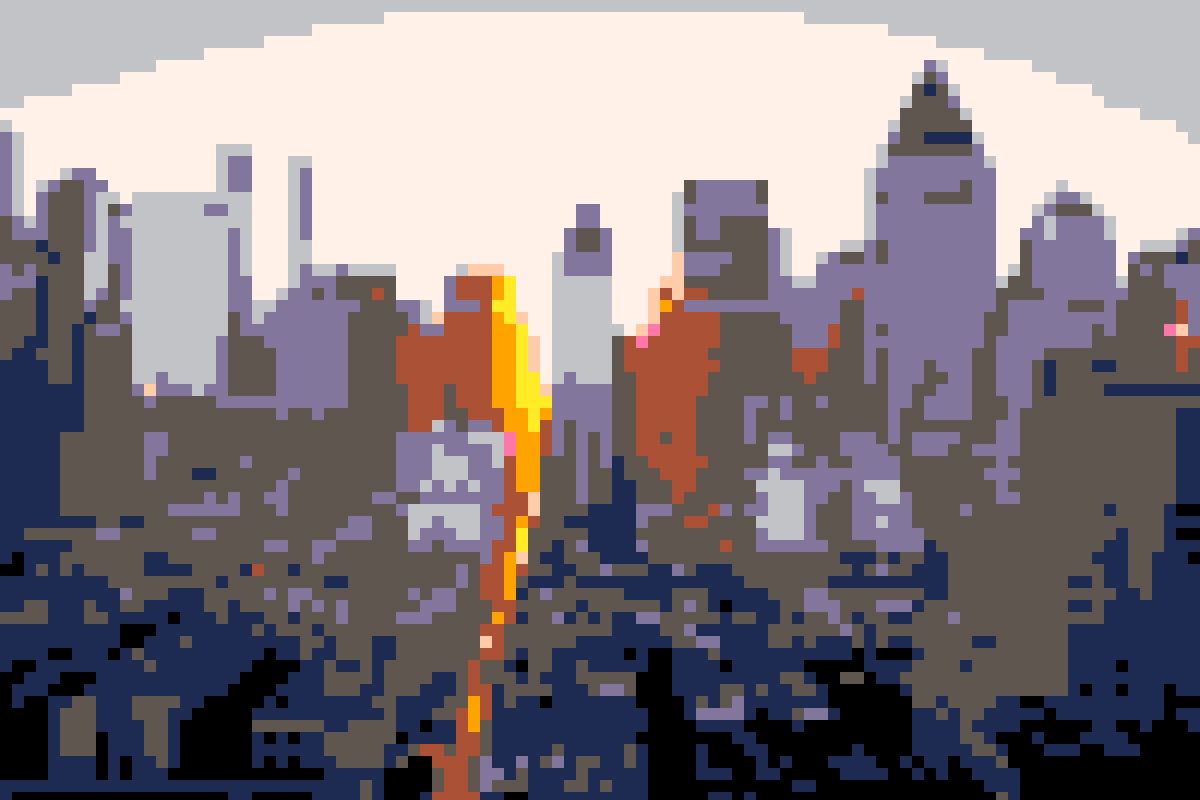
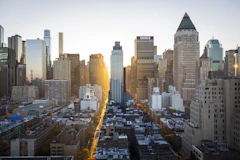
City skyline, Pico-8 preset
Pico-8 preset, square pixels, 12 px blocks (100 cells wide). Uses 11 of the 16 palette colours.
Example photos: Unsplash.
How big should the pixels be?
Block size changes the result more than any other setting. Think in cells, the number of blocks along the long side of the photo.
The slider works in pixels, so convert with one line of arithmetic: block size = long side ÷ cells. A 1,200 px wide photo with 150 cells needs 8 px blocks. Photos larger than 1,600 px are scaled down first, so use the size shown in the Original box above the preview.
| Cells on the long side | Block size on a 1,200 px photo | What you get |
|---|---|---|
| 150 to 200 | 6 to 8 px | Detailed. Eyes, windows and other small features stay readable, so the result is closest to the original photo. |
| About 100 | 12 px | Clearly pixel art, and still easy to read. Faces, ridgelines and skylines all survive. |
| About 64 | 19 px | Chunky. Large shapes still read, but windows disappear and eyes shrink to two or three blocks. |
| About 40 | 30 px | Abstract. Only big shapes survive, and a face becomes a handful of coloured blocks. |
Portraits are the least forgiving, because the eyes and mouth are small, so start them at about 150 cells. Landscapes and city shots hold up well at 100. We compared these steps on the three example photos on this page, so treat them as a guide and adjust until your own subject still reads.
Four tips for better results
1. Crop to the subject first
Pixels2 does not crop, so trim the photo before you upload it. A tight crop spends your cells on the face or building instead of on empty background.
2. Add contrast to flat photos
Hazy or evenly lit shots turn into blocks of nearly the same colour. Raise the contrast slider, or brightness a little, until the main shapes separate.
3. Use a palette for one consistent style
Without a palette you get a low-resolution copy of the photo. A palette preset such as Pico-8 limits the colours, hides photographic noise and gives the picture a recognisable fantasy-console look. The Game Boy filter goes further, with only four colours.
4. Download as PNG
Pixel art depends on crisp edges. PNG keeps them exactly, while JPG softens them. If you need a smaller file for the web, convert the PNG afterwards in an image editor.
Photo to pixel art: common questions
Is my photo uploaded when I convert it?
No. Your browser reads the file and does all of the work on your device, so personal photos never reach a server. The site only counts page visits with Google Analytics, as explained in the Privacy Policy.
What block size should I use for a portrait?
Start with about 150 cells along the long side, which is 8 px blocks on a 1,200 px photo. The face stays readable down to about 100 cells (12 px). Go coarser for a bold, abstract look, but at around 40 cells (30 px) the eyes become single blocks.
Can I use the result commercially?
Pixels2 does not claim any rights to the pixel art you create. Whether you can use it commercially depends on your rights to the original photo, so check that you have permission, especially for photos of other people or other artists’ work.
Why do you recommend PNG over JPG?
PNG is lossless, so every block edge stays exactly as shown in the preview. JPG compression softens those edges and adds faint noise around them, and it fills transparent gaps with white.