
Game Boy Filter for Photos
Turn a photo into the four shades of green of the original Game Boy screen. Pick a block size, watch the before and after update, and download a PNG, all inside your browser.
Upload an image
Click to browse or drag and drop
Supports JPG, PNG, WebP (Max 10MB)
Or try an example image:
Game Boy filter examples
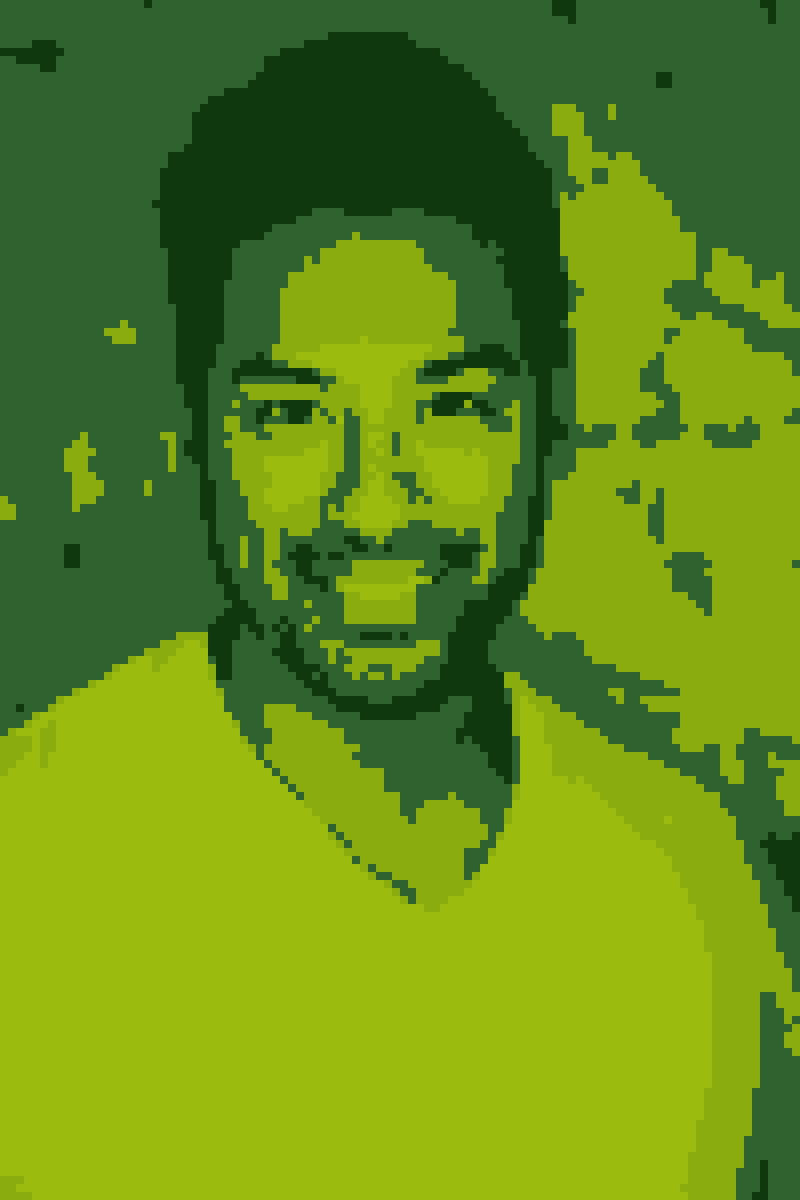
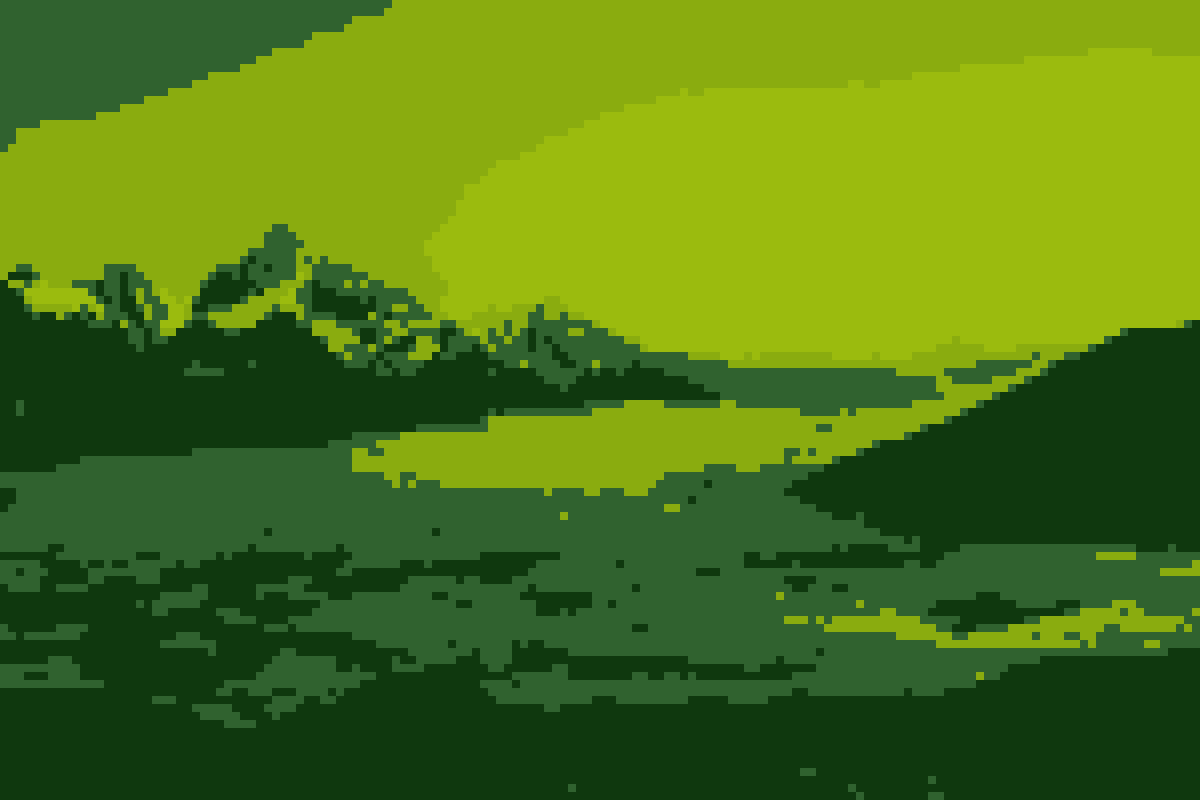
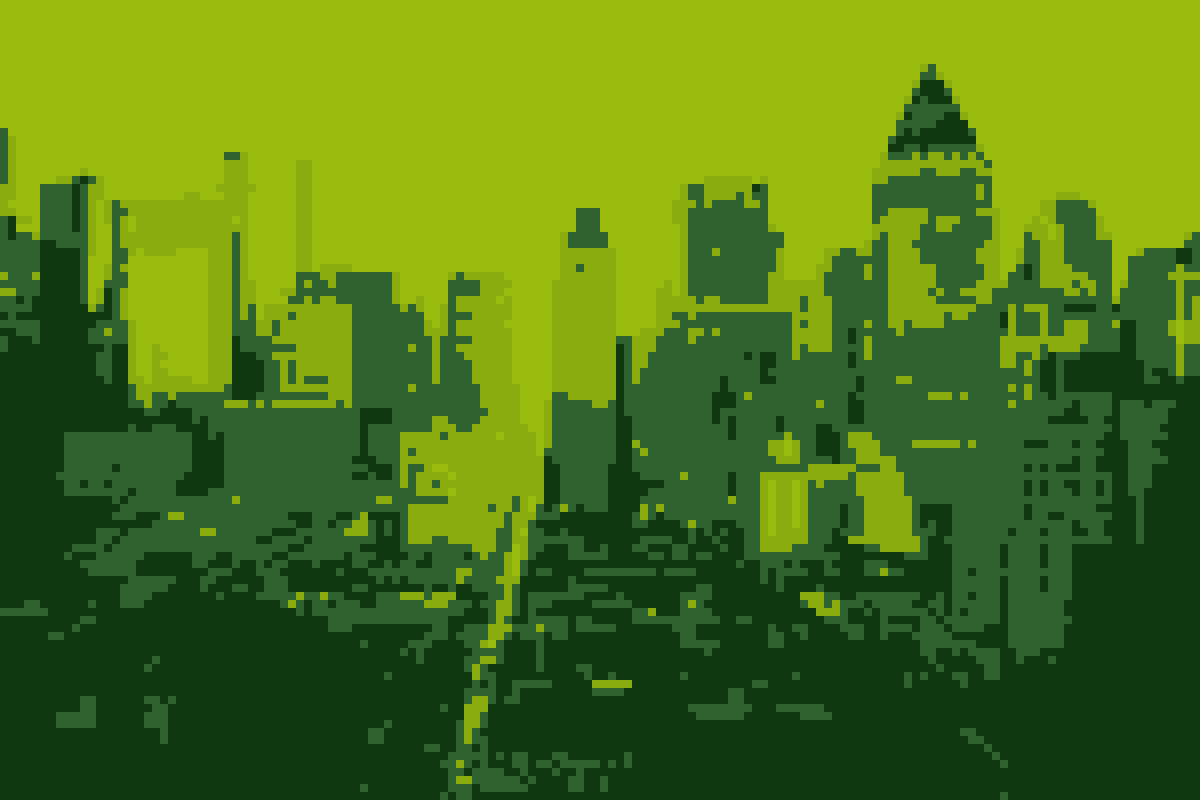
Three photos, one preset. Each result uses 8 px blocks on a 1,200 px wide image, which is 150 cells along the long side.
 Original
Portrait, Game Boy preset
Game Boy preset, square pixels, 8 px blocks (150 cells along the long side). Four greens.
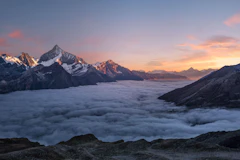 Original
Mountains, Game Boy preset
Game Boy preset, square pixels, 8 px blocks (150 cells wide). Four greens.
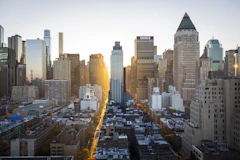 Original
City skyline, Game Boy preset
Game Boy preset, square pixels, 8 px blocks (150 cells wide). Four greens.
Example photos: Unsplash.
The four greens
Every block in the picture is replaced by one of these colours.
Darkest
#0f380fDark
#306230Light
#8bac0fLightest
#9bbc0f
The original Game Boy had a 160 × 144 pixel screen that showed four shades of grey-green. It had no backlight and a contrast dial, so the exact greens depended on the lighting and the dial. These values are a popular approximation, which is why you will find slightly different greens on other sites.
How each block gets its green
Matching every block to the nearest green uses the four colours unevenly. In our test photos the busiest green covered up to half of all blocks. The preset ranks tones instead. It first stretches the brightness of your photo so the darkest and brightest 2% of blocks sit at the two ends, then splits the range into four equal bands, one for each green.
Brightness and contrast still work and are applied before the split. Saturation has no effect with this preset, because the original colour is replaced anyway.
There is no dithering, so every block is a flat colour. Smooth gradients such as skies turn into broad bands with stepped edges, as you can see in the mountain example above. That is part of the look, but it is also why photos with clear light and dark areas work best.
Four tips for a better Game Boy look
1. Pick a photo with clear light and dark areas
A face lit from the side or a skyline against a bright sky maps cleanly onto four tones. Flat, evenly lit scenes collapse into one or two greens.
2. Use contrast to choose the dominant green
Raise contrast to push more blocks into the darkest and lightest greens. Lower it to keep more mid-tones. Brightness shifts the whole picture lighter or darker before the greens are assigned.
3. Match the block size to the feel you want
About 128 cells along the long side matches the width of a Game Boy Camera picture, which is roughly 9 px blocks on a 1,200 px photo. Fewer cells, around 60 to 100, give a chunkier, more graphic result.
4. Download as PNG
Four flat colours compress very well: each example above is only about 30 KB as a 1,200 px PNG. JPG would blur the edges between the greens for no real size benefit.
Game Boy filter: common questions
Is this the same as a Game Boy Camera photo?
Not exactly. The Game Boy Camera stores 128 × 112 pixel pictures and uses dithering to suggest extra tones. Pixels2 does not dither, so you get flat blocks of four greens. For the closest match, set the block size so the long side is about 128 cells wide.
Which colours does the Game Boy preset use?
Four greens, from dark to light: #0f380f, #306230, #8bac0f, #9bbc0f. They are a widely used approximation of the original screen, not an official Nintendo specification.
Can I get grey instead of green?
Not yet. The Game Boy preset is fixed to the four greens. The Game Boy Pocket showed four greys instead, so if you want that look, desaturate the downloaded PNG in an image editor.
Is my photo uploaded?
No. The filter runs in your browser and the photo stays on your device. See the Privacy Policy for the details.
Related tools
- Image to Pixel Art ConverterThe main tool: pixelate any photo, pick a retro palette or a tile shape, and download a PNG.
- Photo to Pixel ArtPortraits, landscapes and city shots, with advice on how large the pixels should be.
- Image to MosaicSquare tiles, dots, hexagons or diamonds, ready to download as a PNG.